Digital Projects Cheat Sheet
Here you will find all the resources you need for all of our digital products
We generally ask 2 weeks lead time from the time a customer sends all the files until a proofing date. This is obviously flexible but a good general rule to follow especially during busy periods.
Tools, Tips, and Demos
Tools
Demos and Walkthroughs
License Manager
Digital Conference Materials (Online, Offline)
General Workflow Walktrhough
Prep Instructions and Tools for DCMs
- Zendesk Support Email- eventlibrary@omnipressdigital.zendesk.com
- DCM Prep Instructions
- Disqus Moderating Help
- Disqus User Support
- DCM Offline PM tools and emails located here - I:\DATA\_Project Management\Daily Tools\DCM Offline (Digital Conference Materials on USB_Power+USB_CD) Tools\USB_Power+ USB_CD PM Tools\Email Templates & Attachments
- DCM Online PM tools and emails located here- I:\DATA\_Project Management\Daily Tools\DCM Online (Digital Conference Materials) Tools\Online (Digital Conference Material) PM Tools\Planning Documents and Email Templates\Email Templates & Attachments
- Catalsyt Output to DCM Setup
Tech Instructions and Tools
- You need both Git and Node installed on any computer to build a DCM. Those can be downloaded here. This is also required on Macs for the Mac build.
- DCM Build Step by Step Instructions
- Server Login For Online sites
- Elasstic Search FOR ONLINE SITES ONLY
- Google Analytics Setup
- Use account-Omnipress Analytics omnipress.analytics@gmail.com
- Disqus Login
- Disqus Admin Dashboard
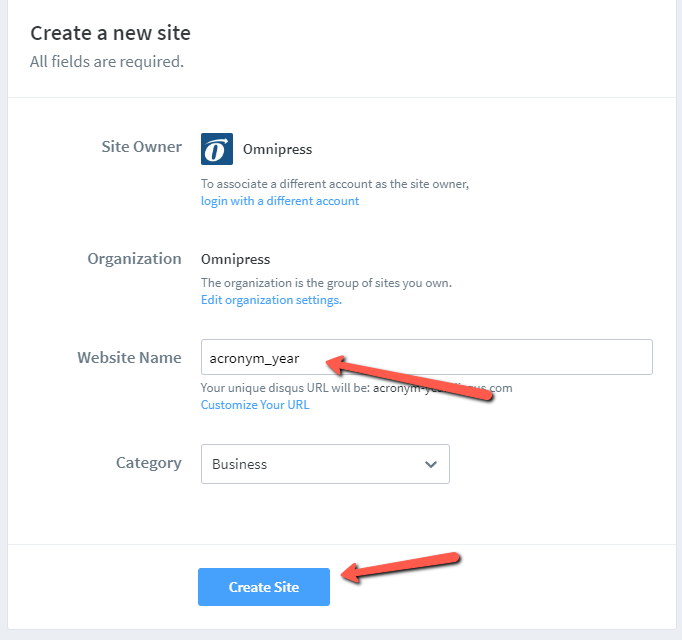
- Create Disqus short name that will go into the app config file of the DCM build
- Git Hub Repository
- Photshop Actions
- Import Spreadsheet template located here - I:\DATA\_Project Technician\Portable App\PT Only
- Flash Drive/CD start file - "I:\DATA\_Project Technician\Portable App\PT Only\Omni-App-Launcher.exe"
- This needs to go on every drive/CD project in the dist folder with all the files that are to go on the drive/CD. It should be renamed YEAR_Acronym
- QC Checklist to use for all DCM Builds
- File should be in the root job folder. If it is missing it can be downloaded from the link.
- Tech will fill out PDF as they go through the checklist
- Initial in the tech section once proofing completed
- Save the file in the root of job folder (current location)
- Rename the file “job number_acronym “
- Let PM know the site is ready
- Once the tech is done and moves the job to pre-proof PM check the checklist in the job folder and ensure tech completed it
- Go through the checklist as well to ensure all was done(it takes less than 5 minutes)
- Initial in the PM section
- Same steps for ALTs and Final Prep
Mobile App
RD Mobile Information
Prep Instructions and Tools
- Mobile App PM tools and emails located here - I:\DATA\_Project Management\Daily Tools\Mobile App Tools\00.RD Mobile\Mobile App PM Tools\Emails and Templates\Attachments
- Catalyst Sync Information
Project Tech Specific Mobile App Info
Final Pricing